
Start a New Listing
In your host portal, navigate to account > listings > new listing (if listings are already created, if not the page will display options to build)
Choose your event format:
- Virtual Event → Guests join remotely
- In-Person Event → Guests attend at a physical location or you travel to them
If you select in-person, you’ll typically be prompted to either:
- Add a hosted location (your venue or a set address), or
- Indicate travel to guests (you bring the experience to them)
Basic Event Details
Fill out the required fields:
- Title → Clear and outcome-focused (e.g., “Ravioli Making Class”)
- Category → Cooking, Wellness, Team Building, etc.
- Duration → Typically 60–90 minutes
- Group Size → Minimum and maximum guests
- Pricing → Per person or per group
If your experience includes shipped materials, the platform will automatically reflect that when you enable the “has shipment” option—no need to include it in the title.
Short Description & Elevator Pitch (What the Experience Is)
A short description is a tagline for your event where as the elevator pitch is your main marketing section. Include:
- What guests will make, do, or experience
- Skill level (beginner-friendly, etc.)
- What makes the experience unique or engaging
- What’s included (materials, instruction, etc.)
For virtual events, clarify the level of participation.
For in-person events, describe the atmosphere or setting.
How It Works
This section should clearly walk guests through the full experience from booking to completion.
Structure it step-by-step:
Before the Event
- Book your experience
- Receive confirmation and any preparation instructions
- If applicable: materials are shipped or provided
Preparation
- Any simple setup or items guests should have ready
- For in-person: arrival details or what to expect upon arrival
Run of Show (Timeline / Agenda)
- Welcome and introduction
- Overview of materials or tools
- Step-by-step guided activity or experience
- Final result or outcome
- Wrap-up and optional Q&A
Keeping the timeline within “How It Works” helps guests easily understand the full flow.
Materials & Logistics
If You Provide Materials
- Clearly list what is included (ingredients, tools, supplies, etc.)
- If shipping is enabled, define regions and timing requirements
What Guests Need
List only common, accessible items, such as:
- Basic tools or equipment
- Simple pantry or household items
For in-person events, this may be minimal or unnecessary.
Media (Photos & Videos)
Upload visuals that show:
- The final outcome or product
- The experience in action
- Materials or setup (if relevant)
Strong visuals help guests quickly understand what they’re booking.
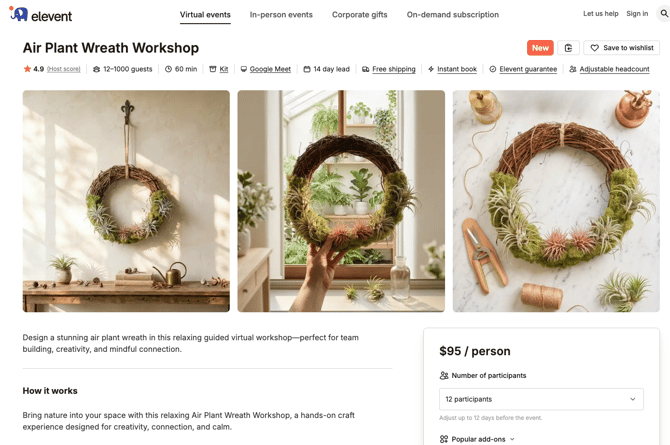
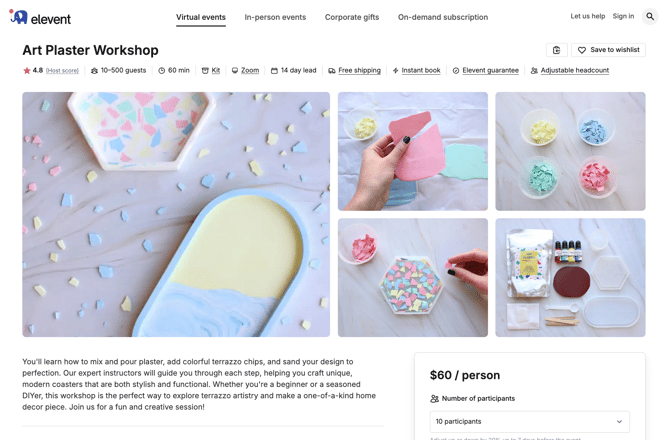
***Please Note our site can support 5, 3, 2, or 1 image(s)***
5, 2, and 1 image will present a horizontal crop 1020x720 pixels and 3 images will create a vertical drop 720x1020 images. Examples of 5 and 3 are shown below:
Final Review & Publish
Before publishing, confirm:
- All required fields are complete
- Materials and expectations are well defined
- Logistics (location or shipping) are accurate
- Once you submit your event for review there is a 48 waiting period. You can still edit it but it is not instantaneous.
Saving (Continue Editing Later)
When you click Save (sometimes labeled Save Draft or Save & Exit):
- Your progress is stored, even if the listing is incomplete
- The listing remains unpublished and not visible to customers
- You can return at any time to finish or revise sections
- Required fields can still be missing
Use this when:
- You’re still writing descriptions or gathering details
- You’re waiting on assets (photos, pricing, schedule, etc.)
- You want to review or refine before going live
Think of this as work-in-progress mode.
Submitting (Ready for Review or Publishing)
When you click Submit:
- All required fields must be completed
- The listing is sent forward—either to:
- A review/approval process, or
- Direct publishing (depending on the platform)
Use this when:
- All details are finalized
- Materials, logistics, and instructions are clear
- You’re ready for guests to see and book the experience
Think of this as going live (or ready to go live).
Key Tip
Whether virtual or in-person, your goal is the same:
make it immediately clear what the experience is, what’s included, and what guests need to do so they can book with confidence.
How to Submit a Gift Listing
Gift listings are product-based experiences (kits, packages, or shipped items), so the focus is on what gets delivered and how pricing is structured.
1. Start a New Gift Listing
In your host portal, select “Create New Listing” and choose Gift (or product-based listing).
This format is designed for:
- Non-live experiences (or add-ons to events)
- Physical goods sent directly to recipients
2. Basic Listing Details
Complete the core fields:
- Title → Clear and descriptive (e.g., “DIY Cookie Decorating Kit”)
- Description → What the gift is, what makes it special, and who it’s for
Focus on the end experience for the recipient, not just the contents.
3. What’s Included
List everything that comes in the gift:
- Physical items (ingredients, tools, materials)
- Packaging or presentation details
- Instructions or printed materials
Be specific—this reduces confusion and increases buyer confidence.
5. Pricing (Important Distinction)
There are three separate values you’ll enter:
Price
- This is the retail price the customer pays
- What appears on the website
Cost
- This is the amount you (the vendor) are paid
- Think of this as your payout per unit
Shipping Cost
- Entered separately
- Covers fulfillment and delivery expenses
- Not bundled into the cost or price fields
Example:
- Price: $75 → Customer pays $75
- Cost: $50 → You receive $50
- Shipping: $10 → Added separately
6. Media (Photos)
Upload high-quality images showing:
- The full gift set
- Individual components
- Packaging/presentation
Strong visuals are especially important since customers aren’t attending live.
8. Final Review & Submit
Before submitting, confirm:
- All required fields are complete
- Pricing and cost are entered correctly
- Shipping details are accurate
- Contents are clearly listed
When ready, click Submit to send the listing for approval or publishing.
Key Tip
For gift listings, clarity around value and expectations is everything.
Customers should immediately understand:
- What they’re receiving
- Why it’s worth the price